Guide · Updated 6 August 2026
How to set up a live and silent auction, step by step.
A live item with a countdown clock on the projector, and a silent lot donors browse and bid on from their phones — both live in the same Auctions tab. Here it is, screenshotted step by step.
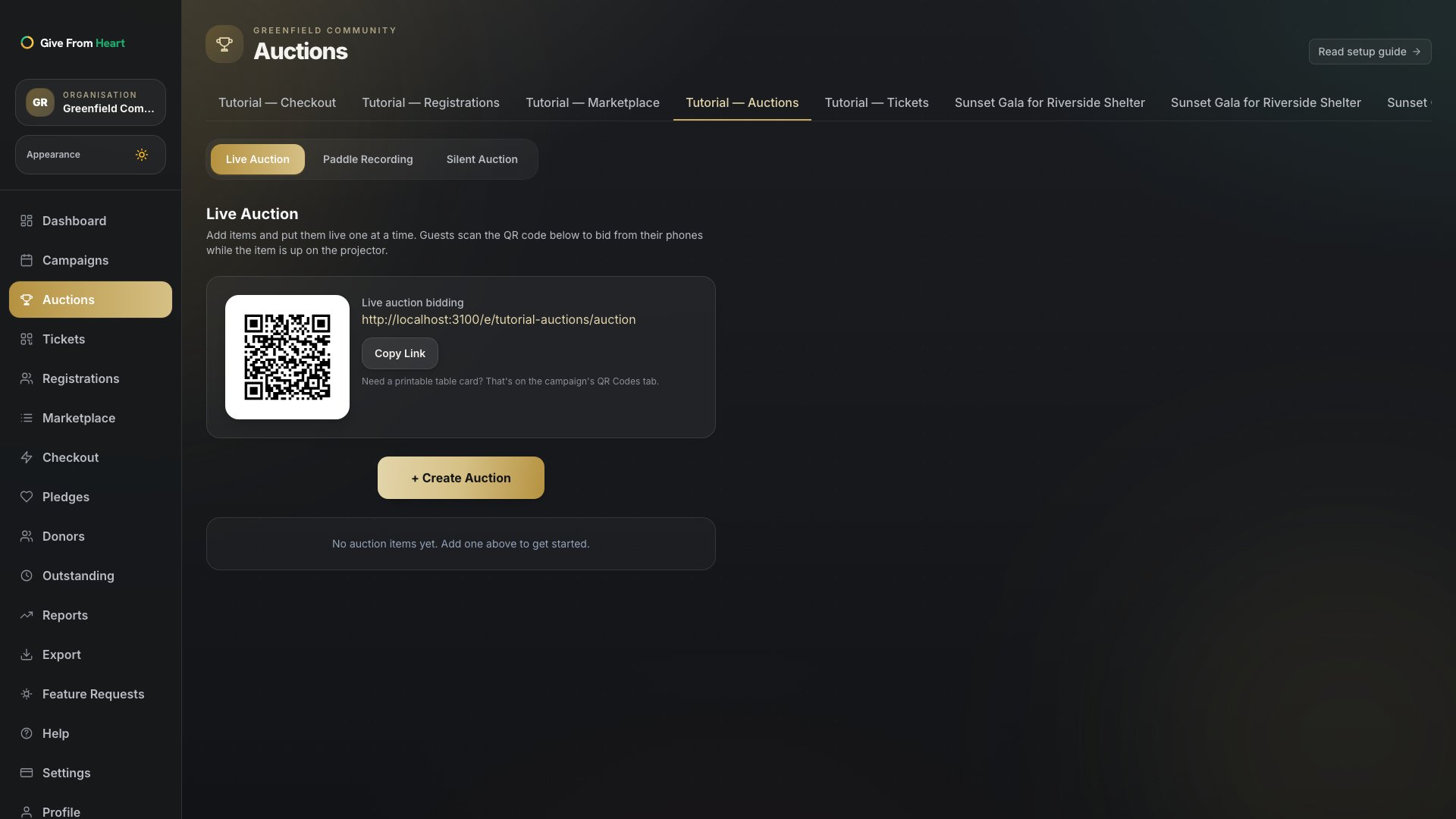
1. Open Auctions → Live Auction
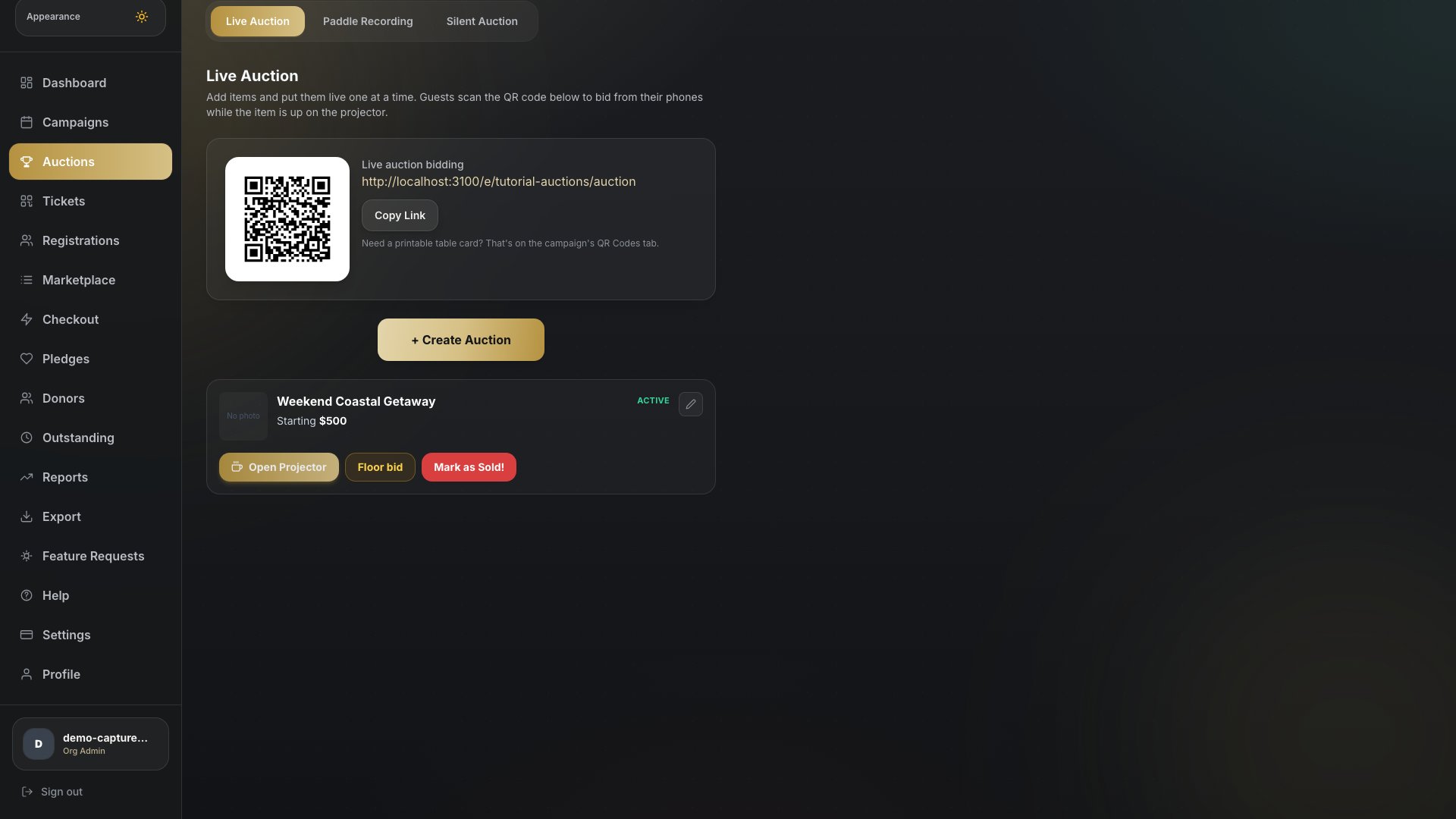
From a campaign, go to Auctions in the left nav. Live Auction is the default tab, showing your QR code for the bidding link and any items already created.
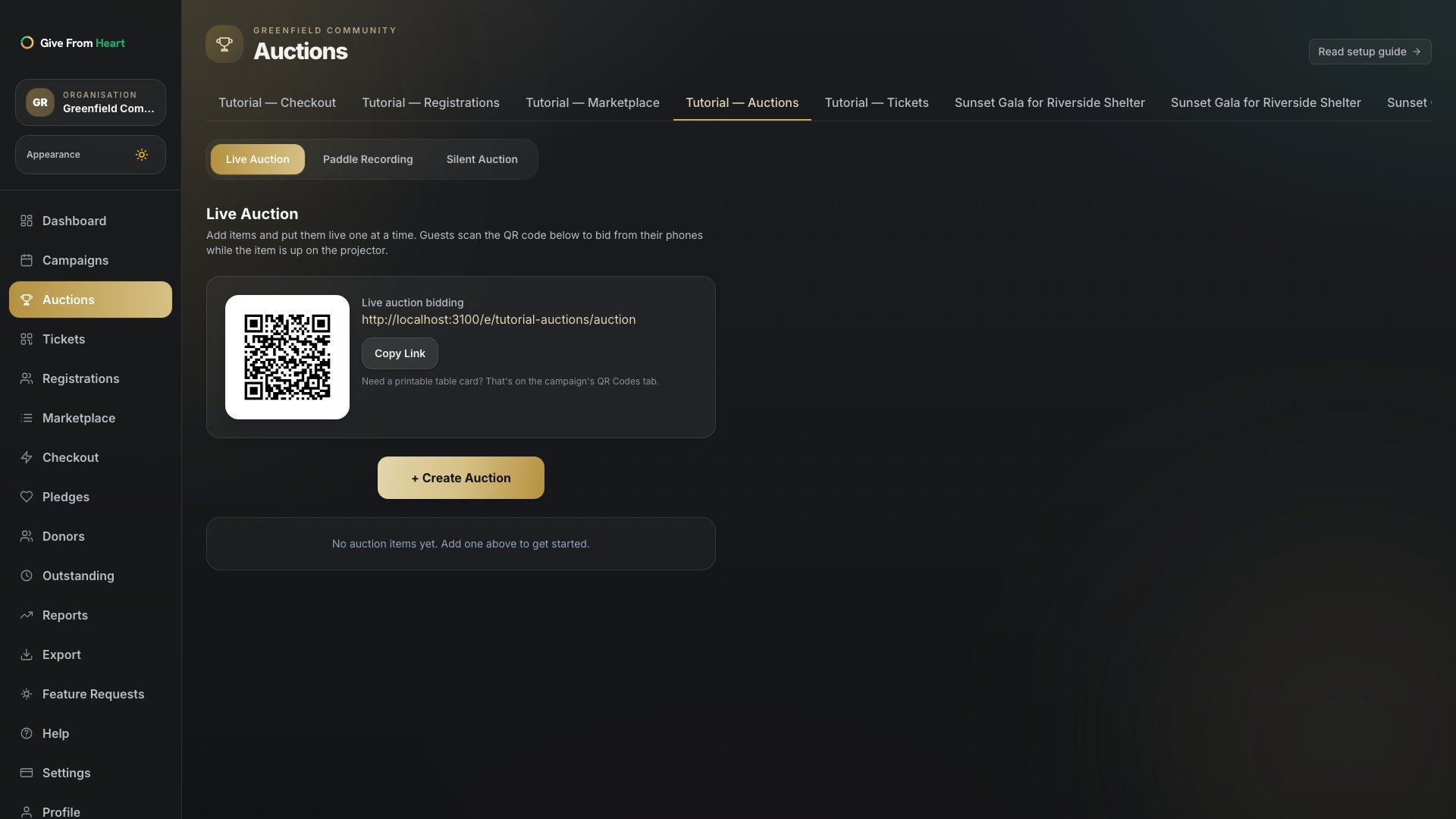
2. Create a live auction item
Press "+ Create Auction" and fill in an item name and starting price — a description and photos are optional but help bidders decide fast. Pick a bid duration (2–15 minutes, or no timer) for when the clock starts once the item goes live; the item itself saves as a draft first, not live yet.
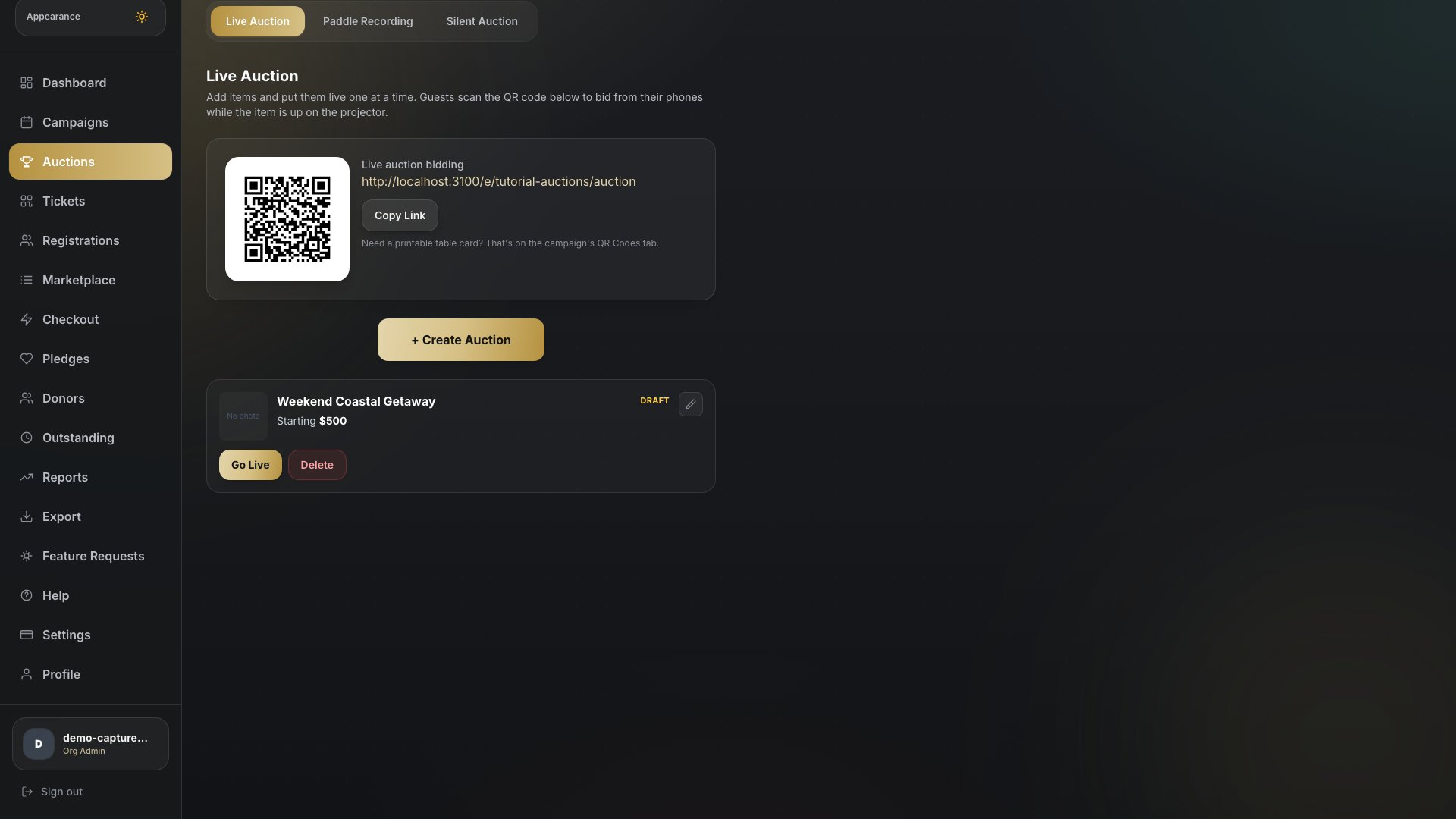
3. Go live when you’re ready to start bidding
Press "Go Live" on the draft item to start its countdown — this is the moment the projector display picks it up and bidding opens. The clock can be adjusted (+1/+2/-1 minute) while live, and a floor bid or a manual "Mark as Sold" are both available from the same card.
4. Open the projector display
Press "Open Projector" to pull up the big-screen view — item photo, current bid and countdown, built to be read from across a room. Open it on a second device or screen before the item goes live so the room sees the countdown from the start.
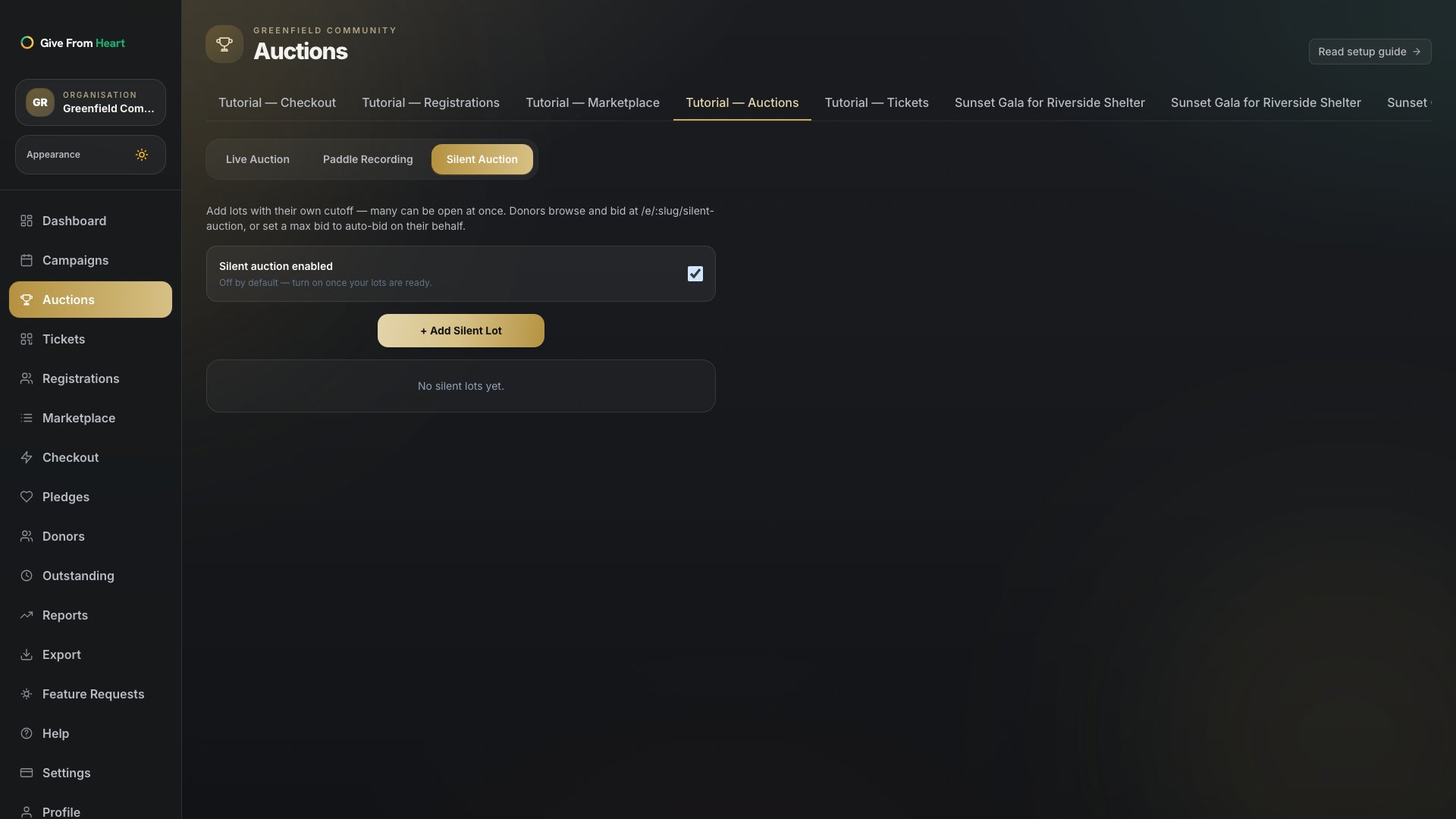
5. Switch to Silent Auction
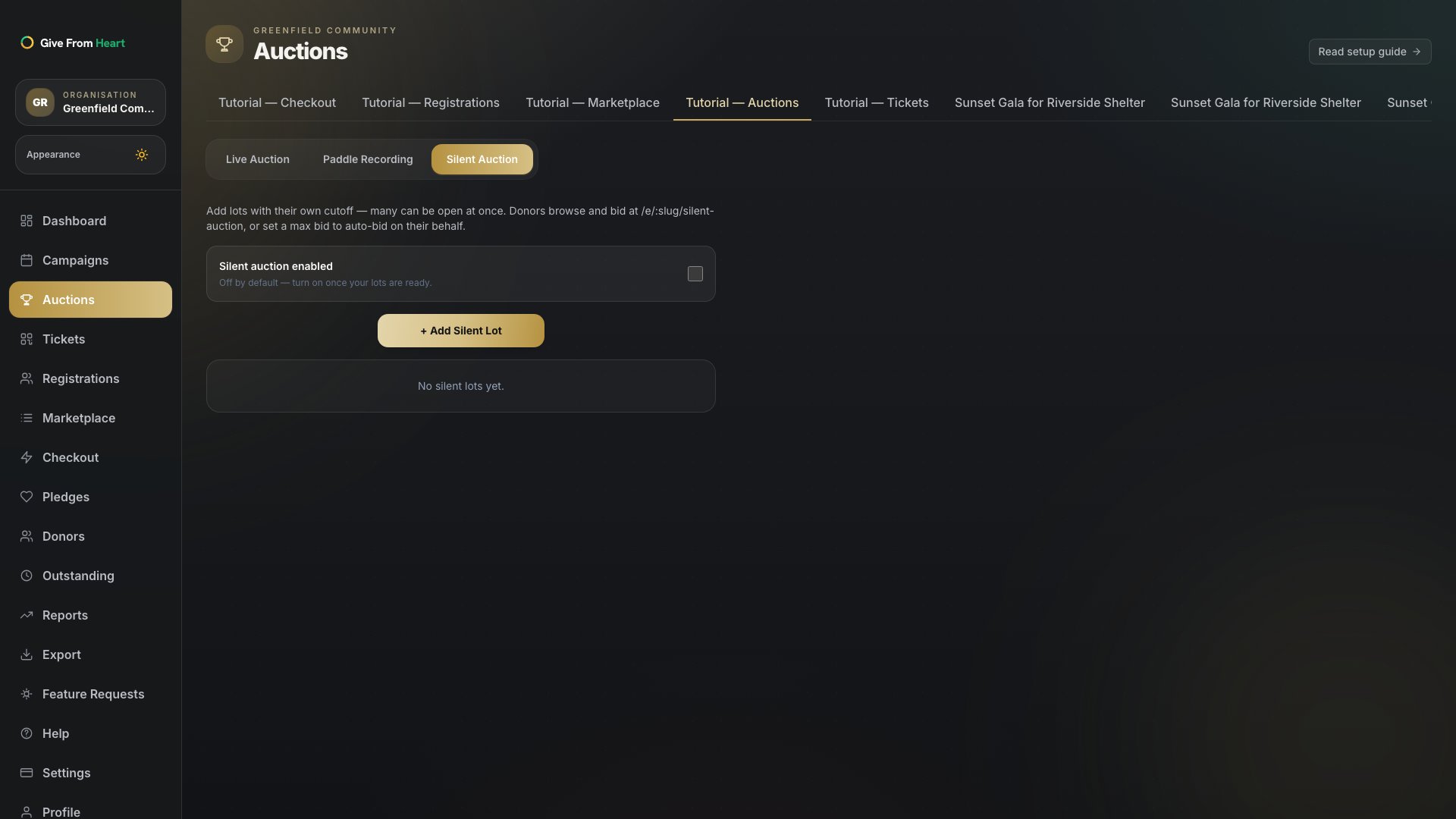
Silent auction is off by default — flip the toggle at the top of the Silent Auction tab once your lots are ready. Unlike live items, silent lots don’t need a projector moment; donors browse and bid at their own pace from a phone.
6. Add a silent lot
Press "+ Add Silent Lot" and set a name, starting price, bid increment and — the one required field beyond name — a cutoff time. Multiple lots can be open at once, each closing independently, and donors can set a max bid to auto-bid on their behalf up to that limit.